Privacy-Focused Tools for Windows Users in 2026

Privacy-focused tools for Windows users are software utilities designed to maximize your control over data collection, reduce tracking, and harden your security on Windows devices. Windows 10 and 11 collect diagnostic data, sync activity, and enable AI features by default. That means without the right tools, your browsing habits, app usage, and even keystrokes can feed back to Microsoft and third-party advertisers. The best privacy stack for Windows combines system-level controls like O&O ShutUp10++, anonymous browsing via Tor Browser, secure credential management through Bitwarden, advanced process protection with MajorPrivacy, and baseline tracker blocking in Brave Browser.
1. O&O ShutUp10++: the best starting point for Windows privacy
O&O ShutUp10++ is a free, portable tool that centralizes Windows privacy toggles into a single, readable interface. You don’t need to dig through Group Policy or the registry. Every setting is labeled in plain language, color-coded by risk level, and reversible with one click.
The tool covers a wide range of Windows 10 and 11 privacy controls, including:
- Telemetry and diagnostic data collection sent to Microsoft
- AI features in Microsoft Edge and Copilot access restrictions
- App permissions for camera, microphone, location, and contacts
- Activity history and timeline tracking
- Advertising ID and tailored experience settings
The free version gives you full manual control. The Premium edition goes further by continuously monitoring your settings and restoring them automatically after Windows updates. That matters because Windows updates are notorious for resetting privacy configurations without warning. Without active monitoring, your carefully chosen settings can silently revert overnight.
O&O ShutUp10++ requires no installation. Download it, run it, apply the recommended settings, and you’re done. It’s the most accessible entry point into Windows privacy for non-technical users.
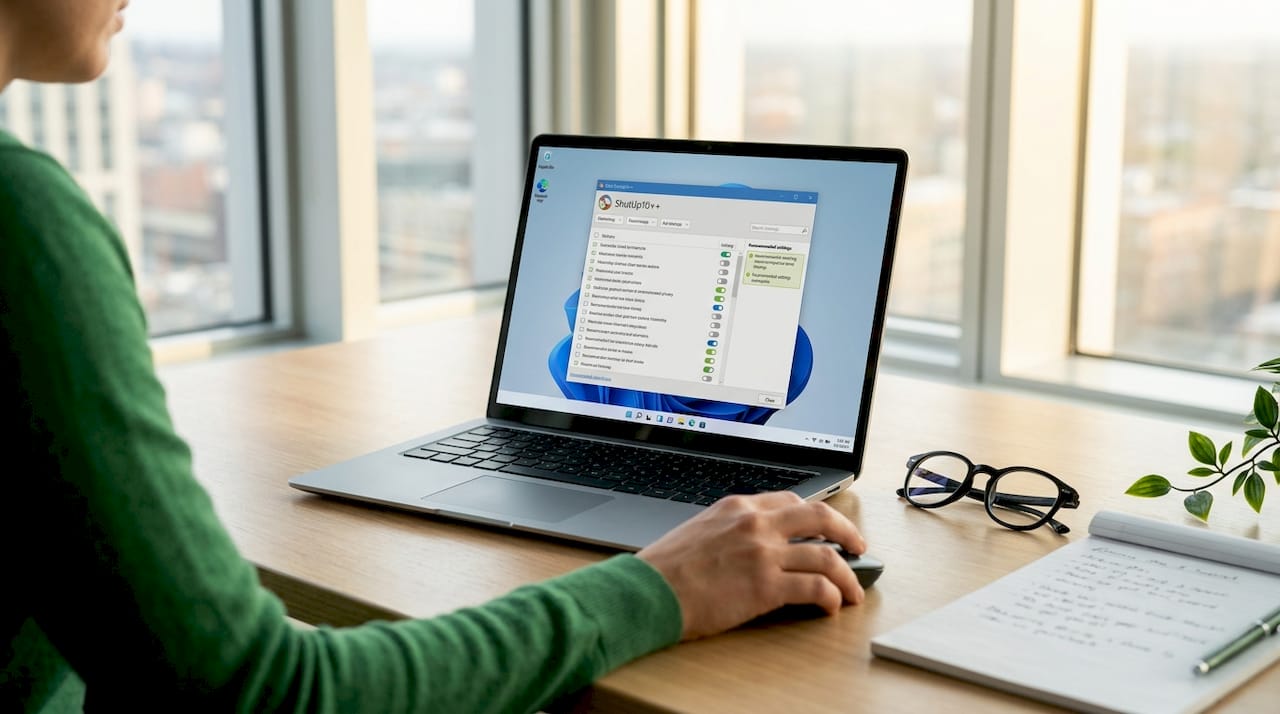
Pro Tip: Run O&O ShutUp10++ immediately after every major Windows update. Updates frequently reset privacy settings, and the free version won’t catch that automatically. If you want hands-off protection, the Premium edition handles this for you.
2. Tor Browser: the gold standard for anonymous browsing on Windows
Tor Browser is the top tool for hardened anti-tracking and true anonymity on Windows. It routes your traffic through multiple encrypted relays, making it extremely difficult for websites, advertisers, or your ISP to trace your activity back to you.
Out of the box, Tor Browser ships with privacy-first defaults that most browsers don’t offer:
- Third-party cookies blocked by default
- Do Not Track signal disabled intentionally, because sending it actually makes you more identifiable
- JavaScript restricted at higher security levels
- Browser fingerprinting protections built into the core
One underappreciated feature is Tor bridges. If your ISP or network blocks Tor traffic, bridges like obfs4 disguise your Tor connection as ordinary HTTPS traffic. This is how users in restrictive network environments maintain access. You can request bridges directly from bridges.torproject.org or use the built-in bridge request inside the browser.
A few practical rules for Windows users: never log into personal accounts like Gmail or Facebook while using Tor, because that immediately de-anonymizes you. Avoid using your regular browser with the Tor proxy setting. That setup exposes you to fingerprinting without the full protections Tor Browser provides.
Pro Tip: Set Tor Browser’s security level to “Safer” or “Safest” in the Security Settings menu. This disables JavaScript on non-HTTPS sites and removes several fingerprinting vectors. Most everyday browsing still works fine at the “Safer” level.
3. Bitwarden: open-source password management with one important caveat
Bitwarden is the leading open-source password manager for Windows users who want secure, private credential storage. It stores passwords in an encrypted vault, supports autofill across browsers, and syncs across devices without requiring you to trust a closed-source provider.
Key benefits include:
- End-to-end encrypted vault with zero-knowledge architecture
- Cross-device sync across Windows, Android, and other platforms
- Open-source codebase audited by independent security researchers
- Free tier covering core features for individual users
There is one real-world issue you need to know about before installing. Bitwarden’s Chrome extension version 2026.3.0 causes severe browser slowdowns on Windows 10 and 11. Users report near-unusable browsing with the extension active across multiple tabs. Disabling the extension resolves the issue immediately. This is a known bug, not a security flaw, but it illustrates why testing privacy tools in realistic multi-tab scenarios matters before committing to them.
The workaround is straightforward. Use the Bitwarden desktop app for vault management and rely on manual copy-paste for credentials in Chrome until the extension issue is patched. Firefox users report fewer performance problems with the same extension.
For a broader comparison of password manager options and their Windows-specific performance, this breakdown covers strengths and tradeoffs across the leading tools.
Pro Tip: If you use Chrome on Windows and notice slowdowns after installing Bitwarden, disable the extension and switch to the desktop app workflow. You keep all the security benefits without the performance hit.
4. MajorPrivacy: kernel-level protection for power users
MajorPrivacy is an advanced Windows privacy tool that operates at the kernel level, giving you control that goes far beyond what standard privacy apps offer. Where O&O ShutUp10++ adjusts settings, MajorPrivacy actively monitors and restricts what programs can do in real time.
The kernel isolation driver protects your user processes against tampering, even from software running with administrator privileges. That’s a meaningful distinction. Many legitimate applications request elevated permissions and then quietly access files, registry keys, or network connections they don’t need. MajorPrivacy blocks that behavior.
Core features include:
- Host Intrusion Prevention System (HIPS) monitoring process, file, registry, and network access
- Software restriction policies to block unauthorized programs from running
- DNS filtering to block connections to known tracking or malicious domains
- Secure encrypted volumes for sensitive file storage
- Visual logs and process maps showing exactly what each program is doing
MajorPrivacy is best suited for users who want deep, auditable control over their system. It has a steeper learning curve than O&O ShutUp10++ or Brave, but the protection it offers is in a different category entirely.
Pro Tip: Use MajorPrivacy’s process visualization logs to audit newly installed software. Many apps make network calls or registry writes that have nothing to do with their stated function. The logs make this visible immediately.
5. Brave Browser: the best baseline privacy browser for everyday use
Brave is PCMag’s top-rated private browser for 2026, and it earns that position by blocking trackers and ads by default without requiring any configuration. For most Windows users, it’s the right starting point for browser-level privacy.
Here’s how the main options compare:
| Browser | Tracker blocking | Fingerprint protection | Default privacy | Resource usage |
|---|---|---|---|---|
| Brave | Built-in, aggressive | Yes | Strong | Low to moderate |
| Firefox | Moderate (Enhanced Tracking Protection) | Partial | Moderate | Moderate |
| Chrome + extensions | Extension-dependent | Minimal | Weak | High |
| Tor Browser | Maximum | Maximum | Strongest | High |
Brave handles the privacy-versus-usability balance better than any other mainstream browser. It loads pages faster than Chrome on most Windows machines because it strips tracker scripts before they execute. Firefox with uBlock Origin comes close, but requires manual setup to reach the same protection level.
Tor Browser remains the privacy gold standard, but it’s slower and breaks more websites. Use Brave for daily browsing and Tor when anonymity is the priority.
Pro Tip: Use Brave as your default browser and keep Tor Browser installed for situations where you need real anonymity. Two browsers, two use cases. You don’t need to choose one for everything.
6. Windows 11 built-in privacy settings: the foundation you can’t skip
No third-party tool replaces the baseline privacy controls built into Windows 11 itself. Turning off tailored experiences, disabling activity history, reducing diagnostic data to the minimum, and removing the Windows Recall index are steps every Windows user should take before installing anything else.
Using a local account instead of a Microsoft account reduces sync-based data exposure significantly. When you sign in with a Microsoft account, your settings, browsing history in Edge, and app usage sync to Microsoft’s servers by default. A local account keeps that data on your machine.
The Windows Recall feature, which takes periodic screenshots of your activity for AI-powered search, is one of the most privacy-sensitive additions to Windows 11. Disabling it takes two clicks in Settings and removes a significant data collection surface. These built-in controls are free, require no downloads, and form the foundation that every other tool in this list builds on.
Key takeaways
The most effective Windows privacy stack layers built-in OS controls, a system-level tool like O&O ShutUp10++, a privacy-first browser, and a VPN to cover network-level exposure.
| Point | Details |
|---|---|
| Start with OS settings | Disable Windows Recall, activity history, and tailored experiences before adding any tools. |
| Use O&O ShutUp10++ for system privacy | The free version handles manual control; Premium prevents update-triggered setting resets automatically. |
| Pick the right browser for the job | Use Brave for daily browsing and Tor Browser when anonymity is the actual requirement. |
| Test password manager extensions | Bitwarden’s Chrome extension causes slowdowns on Windows; test before relying on it daily. |
| Add network-level protection | A VPN covers the traffic layer that local tools like O&O and MajorPrivacy cannot reach. |
Why I stopped chasing perfect privacy and started building a practical stack
By Darius Helzinski
I’ve watched a lot of Windows users install every privacy tool they can find and end up with a machine that’s slow, broken, and frustrating to use. The irony is that a bloated privacy setup can push you back toward convenience tools that collect more data.
My honest recommendation: start with Windows 11’s built-in settings and O&O ShutUp10++. Those two steps alone remove the majority of Microsoft’s default data collection. Add Brave as your browser. That covers 90% of everyday privacy needs without touching performance.
Bitwarden is worth using, but test the Chrome extension before you depend on it. The performance issues are real and well-documented. MajorPrivacy is genuinely powerful, but it’s a commitment. Don’t install it unless you’re willing to spend time learning what it’s telling you.
The most important thing I’ve learned is that privacy tools require maintenance. Windows updates reset settings. Extensions break. Browsers update their behavior. The users with the best long-term privacy outcomes are the ones who check their setup every few months, not the ones who installed the most tools in January.
— Darius Helzinski
Add network privacy with Rapidrabbit VPN
Local tools like O&O ShutUp10++ and Brave protect what happens on your machine. They don’t cover your internet traffic. Your ISP can still see which sites you visit, and public Wi-Fi puts your data at risk the moment you connect.

Rapidrabbit VPN adds the network layer your local tools can’t reach. It runs on Windows using WireGuard, which is the gold standard for VPN speed and security. Your IP address stays hidden, your traffic stays encrypted, and advertisers lose the ability to track you across sites. See how it works and understand why a VPN belongs in every Windows privacy stack. Not sure if you need one? Here’s why a VPN matters alongside the tools you’re already using. FREE TRIAL AVAILABLE. ️
FAQ
What is the best free privacy tool for Windows?
O&O ShutUp10++ is the best free starting point. It centralizes Windows 10 and 11 privacy settings into a single interface with no installation required and no cost.
Does Brave Browser replace a VPN?
No. Brave blocks trackers and ads at the browser level, but your ISP can still see your traffic. A VPN encrypts your connection and hides your IP address, which Brave cannot do.
Why does Bitwarden slow down Chrome on Windows?
The Bitwarden Chrome extension version 2026.3.0 has a documented performance bug that causes severe slowdowns on Windows 10 and 11. Disabling the extension and using the desktop app resolves the issue.
Is MajorPrivacy suitable for non-technical users?
MajorPrivacy is designed for power users who want kernel-level control over processes and network access. It has a steeper learning curve and is better suited to users comfortable reading system logs and process maps.
Do Windows privacy settings reset after updates?
Yes. Windows updates frequently reset privacy configurations. O&O ShutUp10 Premium solves this by continuously monitoring and restoring your chosen settings automatically after every update.